


Time needed: About 2 minutes
Why preview?
Previewing lets you catch missing company details, wrong colors, or branding issues before customers receive your documents. BridgeSync offers two preview methods: Live preview in settings, and actual PDF generation from orders.
Live preview in Invoice Settings
The fastest way to preview your document design:
- Go to PDF Invoices → Invoice Settings
- Look at the Live preview panel on the right side of the page
- Click the tabs to switch between document types:
- Invoice (HTML)
- Packing slip (HTML)
- Credit note (HTML)
- Use the zoom slider to adjust the preview size
- Make changes to templates, colors, or company details on the left
- Watch the preview update in real-time
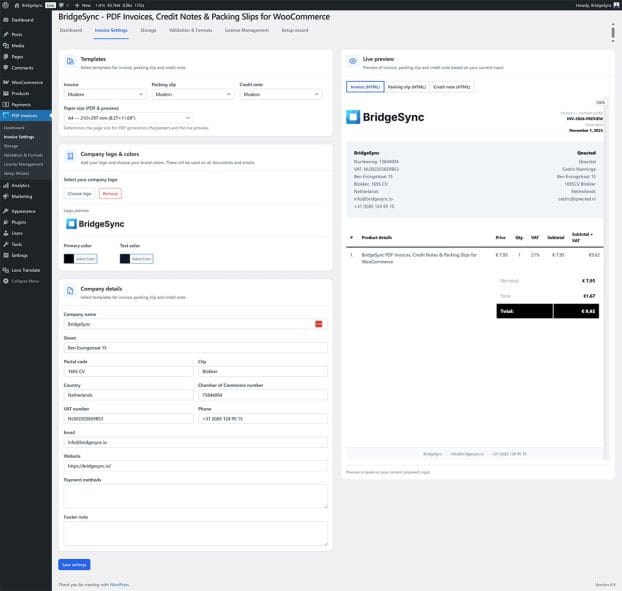
What the Live preview shows
The Live preview uses sample data to show how your documents will look. It displays:
- Your logo and brand colors
- Your company details
- Sample order information
- The selected template layout
Note: The Live preview shows an HTML rendering. The actual PDF may have slight differences in font rendering.
Preview actual PDFs from orders
To see exactly what customers receive:
- Go to WooCommerce → Orders
- Open any order
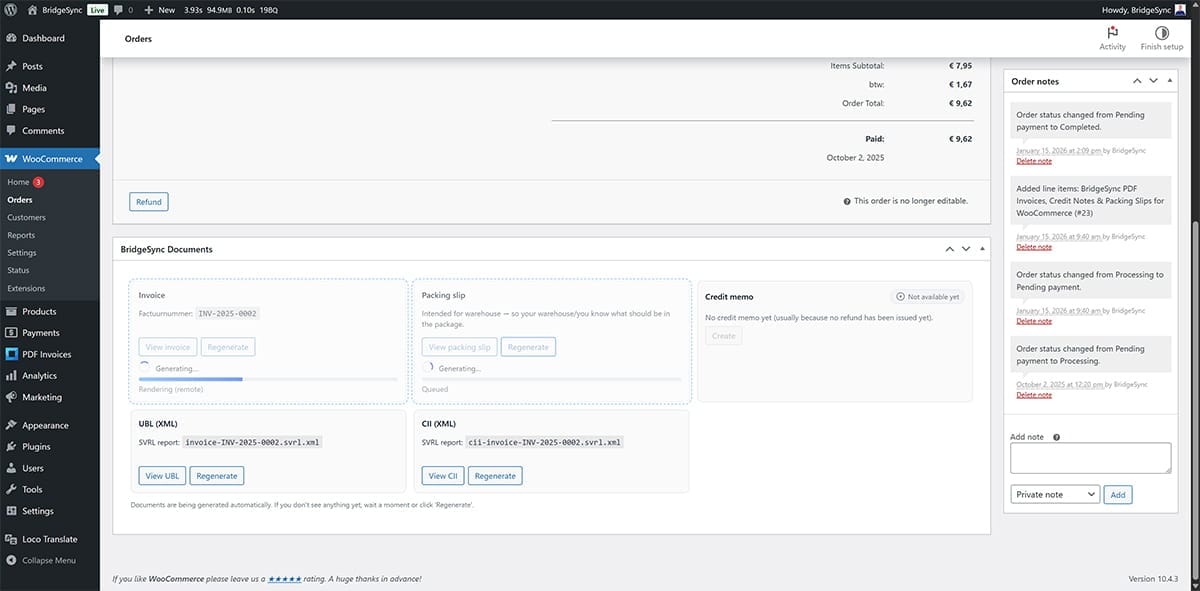
- In the PDF Invoices meta box, click one of the document buttons:
- Invoice — Generate/download invoice PDF
- Packing Slip — Generate/download packing slip PDF
- Credit Note — Generate/download credit note PDF (only for refunded orders)
- The PDF opens in a new browser tab
- Check that all information is correct
Preview next filenames
To see what filenames will be used for the next documents:
- Go to PDF Invoices → Dashboard
- Find the Next filenames (preview) section on the right
- You'll see:
- Next invoice filename (preview)
- Next packing slip filename (preview)
- Next credit note filename (preview)
What to check when previewing
Before sending documents to customers, verify:
- Logo — Appears correctly, not stretched or pixelated
- Colors — Match your brand, text is readable
- Company details — All information is accurate
- Layout — Looks professional, no overlapping elements
- Amounts — Calculated correctly (check VAT, totals)
Verify
Success: You can reliably preview PDFs before customers receive them, and all branding appears correctly.