


Time needed: About 5 minutes
Why numbering matters
Many countries require invoices to have unique, sequential numbers for tax compliance. BridgeSync automatically assigns sequential numbers to invoices, credit notes, and packing slips.
How numbering works
BridgeSync uses separate sequential counters for each document type:
| Document | Number format | Example |
|---|---|---|
| Invoice | INV-{YYYY}-{counter} | INV-2026-0001 |
| Credit note | CRN-{YYYY}-{counter} | CRN-2026-0001 |
| Packing slip | PS-{YYYY}-{counter} | PS-2026-0001 |
Each counter increments independently. When you generate an invoice, only the invoice counter increases.
Configure filename patterns
Filename patterns control both the document number that appears on the PDF and the filename when the PDF is stored.
- Go to PDF Invoices → Storage in your WordPress sidebar
- Find the Filename patterns section on the right side
- Edit the patterns for each document type:
- Invoice filename pattern
- Credit note filename pattern
- Packing slip filename pattern
- Watch the Live preview update as you type
- Click Save changes
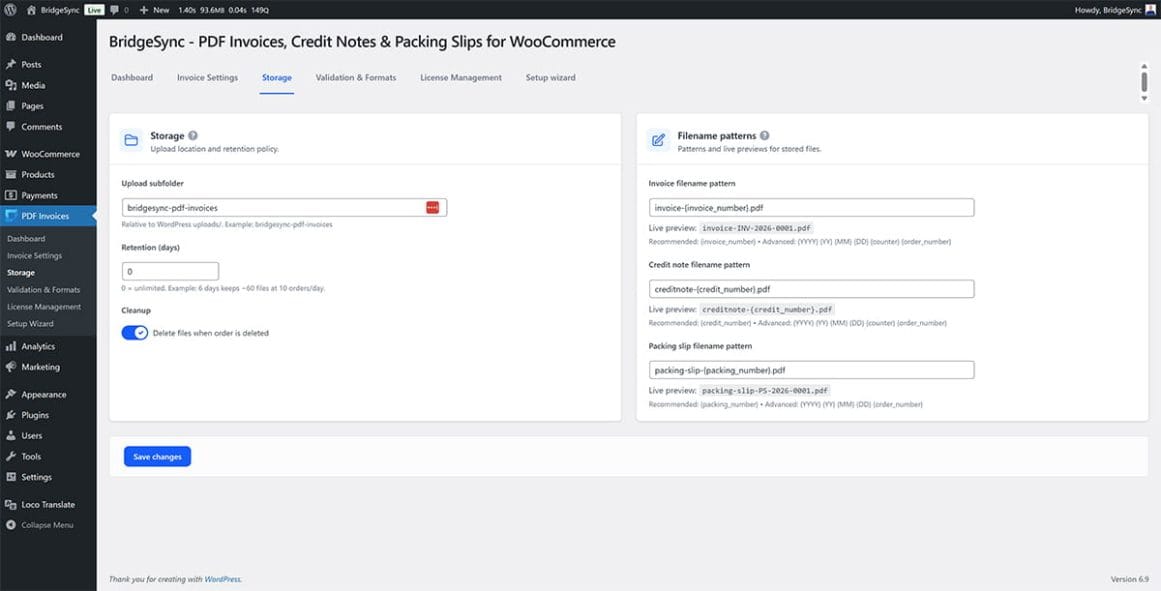
Available tokens
Use these tokens to build your filename patterns:
| Token | What it shows | Example |
|---|---|---|
| {invoice_number} | Full invoice number | INV-2026-0001 |
| {credit_number} | Full credit note number | CRN-2026-0001 |
| {packing_number} | Full packing slip number | PS-2026-0001 |
| {order_number} | WooCommerce order number | 1234 |
| {YYYY} | 4-digit year | 2026 |
| {YY} | 2-digit year | 26 |
| {MM} | 2-digit month | 01-12 |
| {DD} | 2-digit day | 01-31 |
Example patterns
| Goal | Pattern | Output |
|---|---|---|
| Simple with year | invoice-{invoice_number}.pdf |
invoice-INV-2026-0001.pdf |
| Include order number | invoice-{order_number}-{invoice_number}.pdf |
invoice-1234-INV-2026-0001.pdf |
| Year-month prefix | {YYYY}-{MM}-{invoice_number}.pdf |
2026-01-INV-2026-0001.pdf |
| Compact format | INV{YY}{MM}{DD}-{order_number}.pdf |
INV260126-1234.pdf |
Reset to defaults
If you want to restore the original filename patterns:
- Go to PDF Invoices → Storage
- Find the Filename patterns section
- For each pattern field, delete the current value and enter:
- Invoice:
invoice-{invoice_number}.pdf - Credit note:
creditnote-{credit_number}.pdf - Packing slip:
packing-slip-{packing_number}.pdf
- Invoice:
- Click Save changes
Or, run the Setup Wizard again (PDF Invoices → Setup Wizard) and click "Restore defaults" on Step 5.
Verify it works
- Go to PDF Invoices → Dashboard
- Check the Next filenames (preview) section on the right
- You'll see previews of the next filename for each document type
- Generate a test invoice from any order to confirm
Verify
Success: New invoices get sequential numbers automatically, and filenames match your configured pattern.
Important notes
- Don't change patterns mid-year if your accounting requires consistent numbering
- Sequential numbers never reset unless you run database maintenance
- Gaps in numbers can occur if documents are deleted (this is normal and legally acceptable in most jurisdictions)
- If you need to reset or adjust counters, contact support