


Time needed: About 5 minutes
What is a credit note?
A credit note is a document you issue when refunding (part of) an order. It references the original invoice number and shows the refund amount. Credit notes are important for accounting and tax compliance.
How credit notes work in BridgeSync
When you create a refund in WooCommerce, BridgeSync can automatically generate a matching credit note PDF. The credit note:
- Gets its own sequential number (e.g., CRN-2026-0001)
- References the original invoice number
- Shows the refunded items and amounts
- Uses the same template and branding as your invoices
Enable automatic credit notes
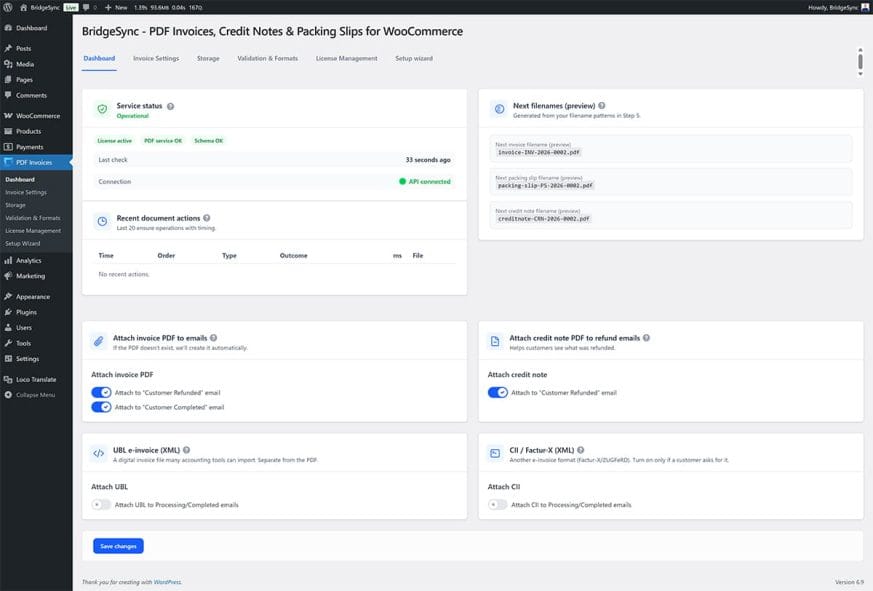
Credit notes are enabled by default during the Setup Wizard. To verify or change the setting:
- Go to PDF Invoices → Dashboard
- Find the Attach credit note PDF to refund emails section
- Ensure Attach to "Customer Refunded" email is enabled
- Click Save changes
Create a refund (and credit note)
- Go to WooCommerce → Orders
- Open the order you want to refund
- Click Refund at the bottom of the order items
- Enter the refund amount and select items being refunded
- Choose your refund method (manual or automatic via payment gateway)
- Click Refund to process
BridgeSync automatically generates a credit note when the refund is processed. If email attachments are enabled, the credit note is sent with the refund notification email.
Download a credit note manually
- Go to WooCommerce → Orders
- Open the refunded order
- In the PDF Invoices meta box, click Credit Note
- The PDF opens in a new tab
Choose a credit note template
- Go to PDF Invoices → Invoice Settings
- In the Templates section, find the Credit note dropdown
- Choose Default, Basic, or Modern
- Check the Live preview — click the "Credit note (HTML)" tab
- Click Save settings
Configure credit note filename
- Go to PDF Invoices → Storage
- Find Credit note filename pattern
- Edit the pattern (default:
creditnote-{credit_number}.pdf) - Click Save changes
Important: Generate invoice first
For proper accounting, you should generate the invoice before processing a refund. This ensures:
- The credit note references a valid invoice number
- Your accounting records are complete
- Sequential numbering is maintained
If you refund an order that doesn't have an invoice yet, the credit note will still be generated but may not reference an invoice number.
Verify
Success: Refunds produce a matching credit note PDF with proper numbering and references.