


Control when and where the VAT number field appears during checkout. By default, the field shows for customers with an EU or Swiss billing address.
Enable or disable the VAT field
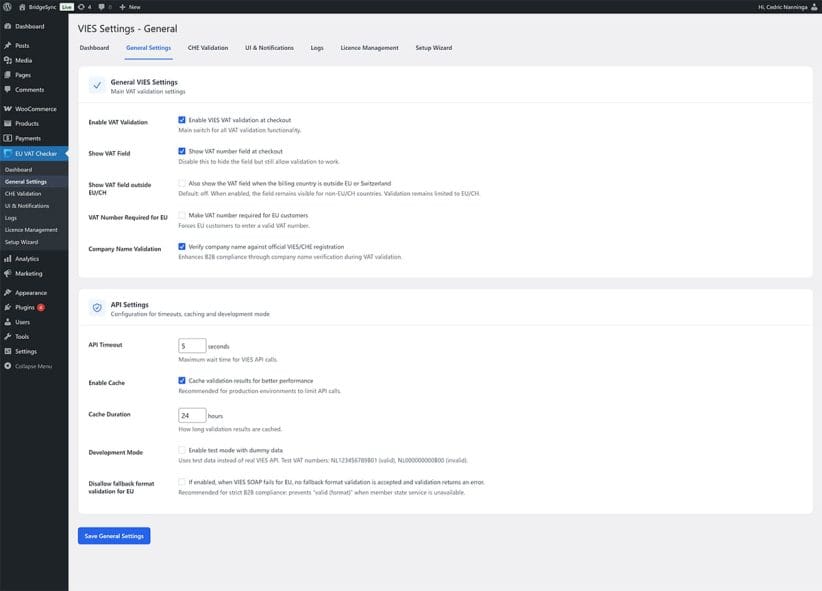
- Go to EU VAT Checker → General Settings in your WordPress sidebar
- Find the General VIES Settings section
- Check or uncheck Show VAT number field at checkout
- Click Save General Settings
Show VAT field for non-EU countries
By default, the VAT field only appears when customers select an EU country or Switzerland as their billing address. To show it for all countries:
- Go to EU VAT Checker → General Settings
- Check Also show the VAT field when the billing country is outside EU or Switzerland
- Click Save General Settings
Note
Even when the field is visible for non-EU countries, validation only works for EU and Swiss VAT numbers. The field is informational for other countries.
Make VAT number required for EU customers
To require B2B customers to enter a VAT number before completing checkout:
- Go to EU VAT Checker → General Settings
- Check Make VAT number required for EU customers
- Click Save General Settings
Consider carefully
Requiring a VAT number blocks B2C (consumer) orders from EU customers. Only enable this if you exclusively sell to businesses.
Verify the field appears
- Open your checkout page in an incognito/private browser window
- Select an EU country (like Germany or France) as billing country
- The VAT number field should appear in the billing section
If the field doesn’t appear, see VAT field not showing for troubleshooting steps.