


What you're experiencing
Your Bol.com synchronization stopped or runs irregularly. New orders aren't importing, stock levels aren't updating, and you risk overselling or missing orders.
Good news: BridgeSync uses Action Scheduler
BridgeSync uses Action Scheduler combined with heartbeat technology for reliable synchronization — even when your site has little to no traffic. This is more robust than standard WP-Cron. However, some server configurations can still interfere with scheduled tasks.
Step 1: Check your synchronization status
Go to Bol.com connector → Dashboard and locate the API Synchronization status panel:
- Latest synchronization — Shows when BridgeSync last synced with Bol.com. Should match your interval setting.
- Expected interval — Your configured sync frequency (e.g. "Every 15 min")
- API connection status — Should show green "API connected"
- External monitoring — Optional external ping service status (orange if not configured)
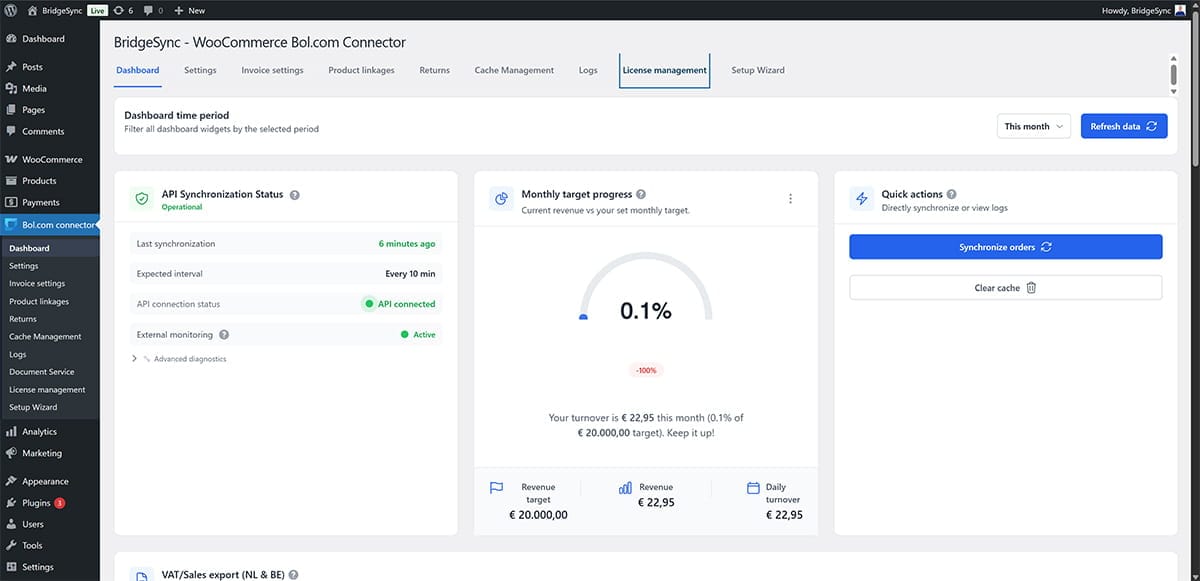
If status shows "Operational" and "Latest synchronization" is recent (within your interval), synchronization is working correctly. No action needed.
Step 2: Diagnose the issue
If synchronization is delayed or stopped, expand Advanced diagnostics on the Dashboard for detailed information about what's happening.
Common causes and solutions
Action Scheduler is not running
Why this happens: Action Scheduler relies on WordPress background processes. Some hosting configurations, security plugins, or server settings can block these processes.
How to fix:
- Go to Tools → Scheduled Actions in WordPress
- Check if there are pending BridgeSync actions stuck in the queue
- If actions are stuck, try clicking "Run" manually on a few pending actions
- If manual runs work, check for plugins that might block background processes (security plugins, caching plugins)
Hosting provider blocks background processes
Why this happens: Some shared hosting providers limit or block loopback connections and background processes to reduce server load.
How to fix:
Contact your hosting provider and ask:
"Can you ensure loopback connections and WordPress Action Scheduler are not blocked? I need background processes for my WooCommerce Bol.com integration."
If your host cannot unblock these processes, consider upgrading to a managed WordPress host or VPS where you have more control.
Extra reliability: Set up external monitoring (optional)
Why this helps: External monitoring services ping your site at regular intervals, ensuring WordPress background processes run even during low-traffic periods. This adds an extra layer of reliability to BridgeSync's built-in Action Scheduler.
How to set up:
- Create a free account at cron-job.org
- Add a new cron job with URL:
https://yourwebsite.com/wp-cron.php?doing_wp_cron - Set the interval to every 10-15 minutes
- Save and enable the cron job
Once configured, the "External monitoring" status on your BridgeSync Dashboard will turn green, showing the service is actively pinging your site.
WP-Cron is disabled in wp-config.php
Why this happens: Some hosting providers or developers disable WP-Cron for performance reasons by adding define('DISABLE_WP_CRON', true); to wp-config.php.
How to check and fix:
- Open your
wp-config.phpfile (in your WordPress root directory) - Search for
DISABLE_WP_CRON - If found and set to
true, you need external cron monitoring (see above) - Or remove/comment out the line to re-enable WP-Cron
If WP-Cron is disabled intentionally for performance, keep it disabled and use external monitoring instead.
Still experiencing sync issues?
Contact BridgeSync support with these details:
- Screenshot of your BridgeSync Dashboard showing the API Synchronization status panel
- Your hosting provider name
- Whether you have external monitoring configured
- Any error messages from Advanced diagnostics