

Setup time: 2-5 minutes during the Setup Wizard
Why product linking matters
Product linking connects your WooCommerce products to the correct Bol.com listings. Without this connection, BridgeSync cannot sync stock levels or prices — leading to overselling or missed sales.
BridgeSync uses EAN/GTIN codes (the 13-digit barcode numbers on product packaging) to match products automatically. These codes act as unique product identifiers that connect your WooCommerce inventory to Bol.com.
Step 1: Configure product linking in the Setup Wizard
During Step 5: Product linking of the Setup Wizard, tell BridgeSync where your EAN codes are stored:
Choose one of three options:
- GTIN, EAN, UPC or ISBN — The default WooCommerce 9.5+ field (recommended for new stores)
- SKU (Stock Keeping Unit) — For older WooCommerce versions or stores that use SKU for EAN codes
- Custom field — For product properties, ACF fields, or other custom values added by plugins
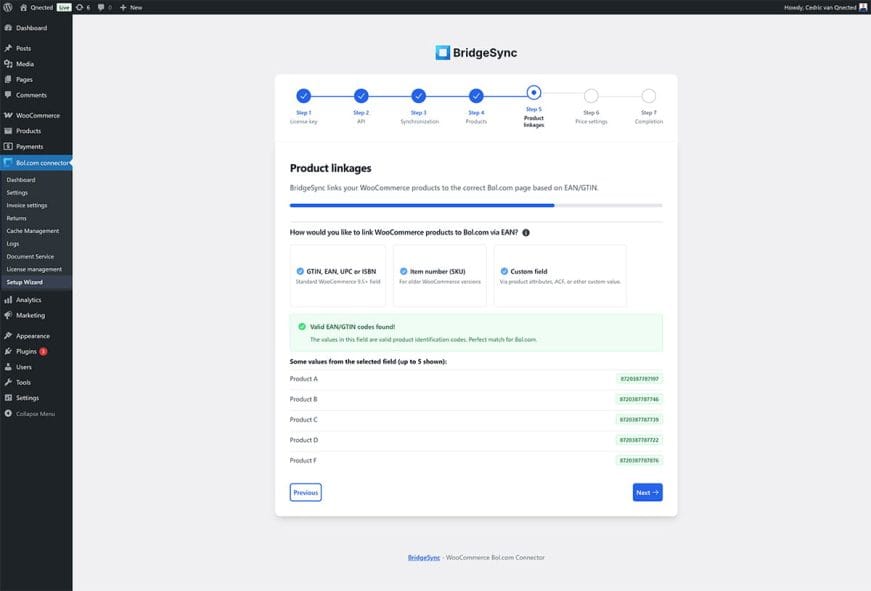
BridgeSync automatically validates your selection and shows a preview of matched products with their EAN codes. Look for the green "Valid EAN/GTIN codes found!" confirmation before proceeding.
Using a custom field for EAN codes
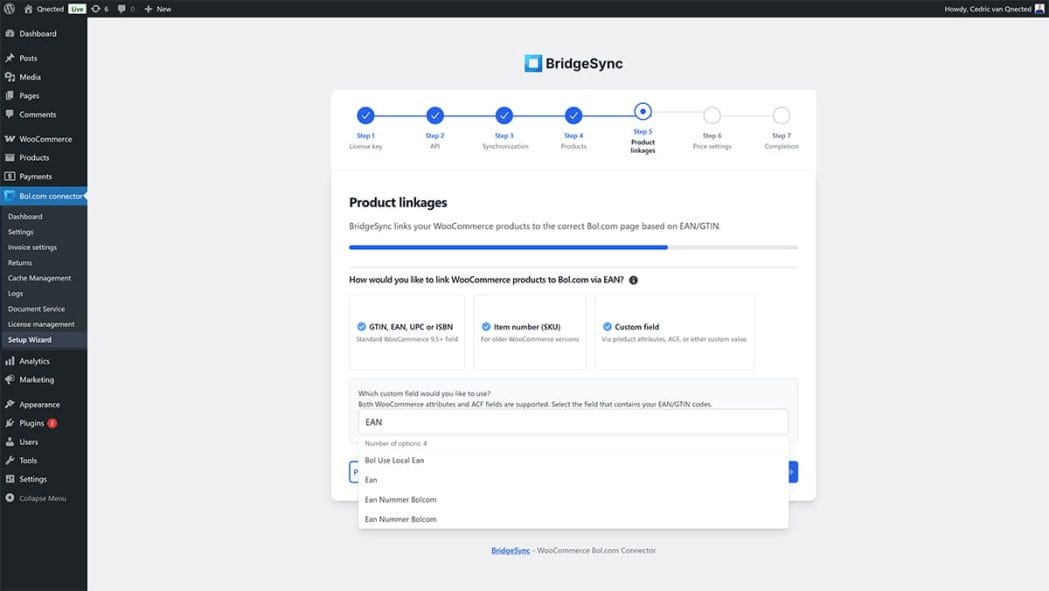
If you select Custom field, BridgeSync displays a searchable dropdown with all available WooCommerce attributes and ACF fields:
- Click the Custom field option
- Use the search box or scroll through the list to find your EAN field
- Select the field that contains your EAN/GTIN codes
- BridgeSync will validate whether valid codes are found
Step 2: Configure pricing settings (optional)
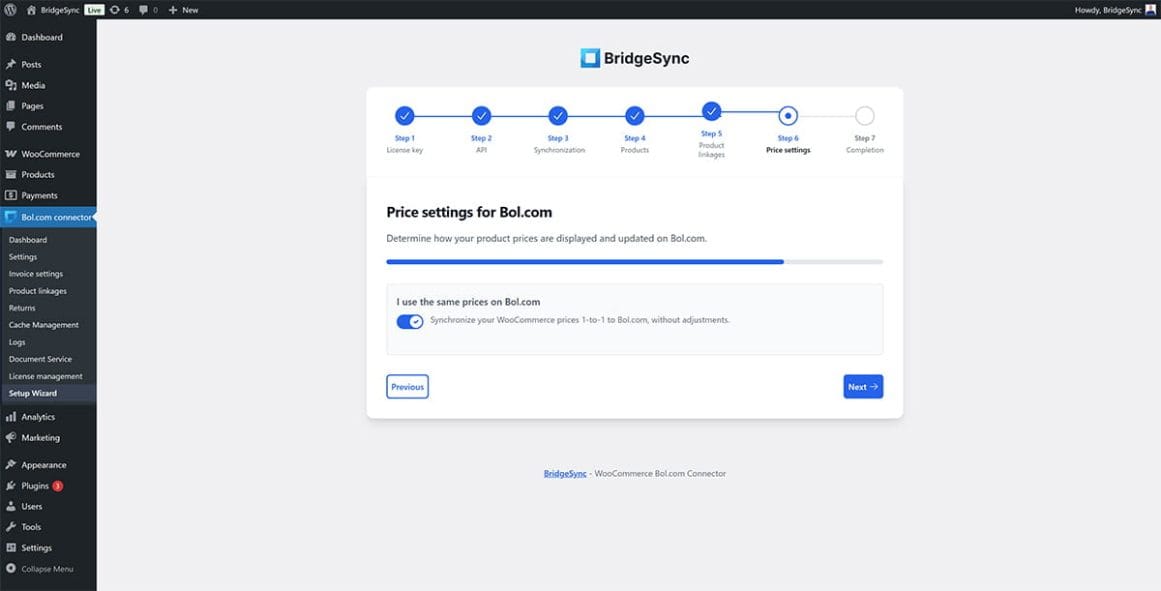
In Step 6: Pricing settings, decide how BridgeSync handles prices for Bol.com:
Option A: Use the same prices on Bol.com
Enable this toggle to synchronize your WooCommerce prices 1-to-1 to Bol.com with no adjustments. This is the simplest setup for most stores.
Option B: Adjust prices for Bol.com
Disable the toggle to set different prices for Bol.com. Choose how you want to manage pricing:
- I adjust prices per product (easiest) — Set a Bol.com price per product via the BridgeSync tab on each product page. If left blank, BridgeSync uses the WooCommerce price.
- Custom field — Use a single field for all products (e.g. ACF/meta). Enter the meta key (e.g.
_bolcom_price). If not found or empty, BridgeSync uses the WooCommerce price.
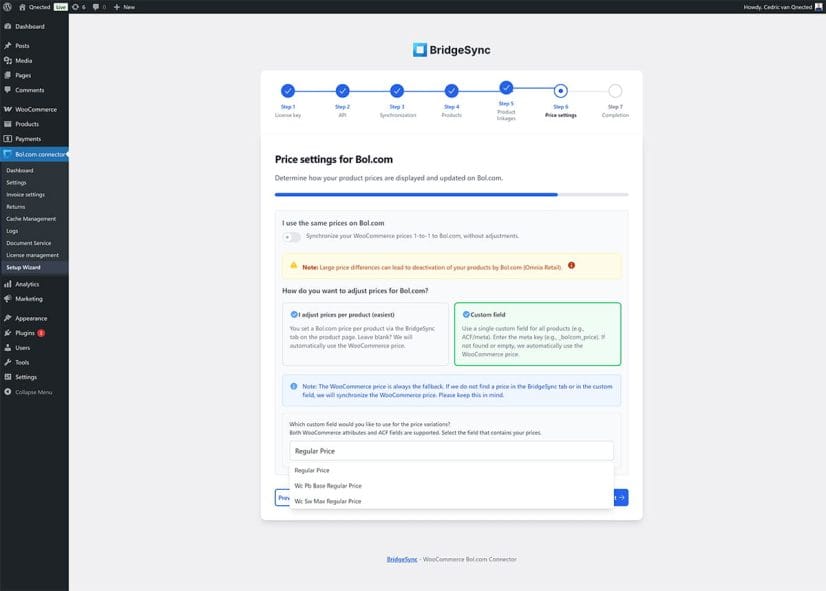
Note: Large price differences may lead to the deactivation of your products by Bol.com (Omnia Retail). Keep Bol.com prices competitive with other sellers.
Manage individual product settings
After completing the Setup Wizard, you can configure Bol.com settings for each product individually:
- Go to Products → All Products and edit any product
- Scroll down to the Product data panel
- Click the BridgeSync tab in the left menu
Here you can configure:
- Use separate Bol.com price — Enable to set a different price for Bol.com (shows WooCommerce price for reference)
- EAN validation — BridgeSync shows whether the EAN is valid and complies with GS1 standards
- Fulfillment method — Choose between FBR (you ship) or FBB (Bol.com handles storage, shipping, and returns)
- Synchronize changes immediately — Push changes to Bol.com without waiting for the next sync interval
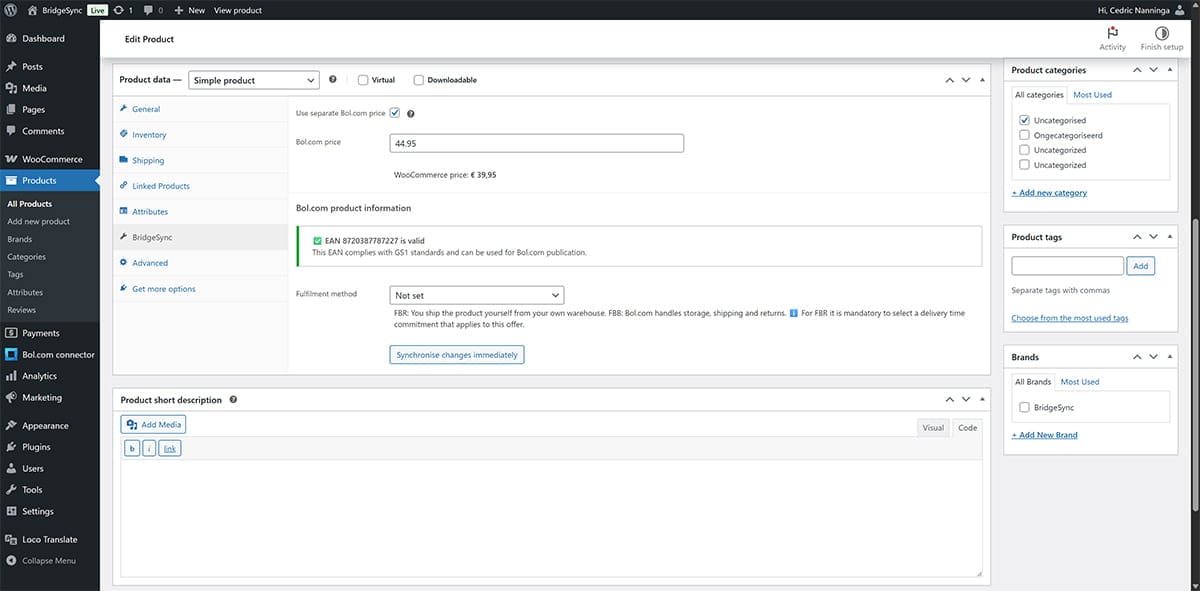
Success check: When you see "EAN [number] is valid" with the green checkmark, your product is correctly linked and ready for Bol.com synchronization. Stock and price changes will sync automatically.
Monitor all product linking
The Product linking page gives you a complete overview of all your products and their Bol.com connection status. Go to Bol.com connector → Product linking to see which products are linked, which need attention, and which are missing EAN codes.
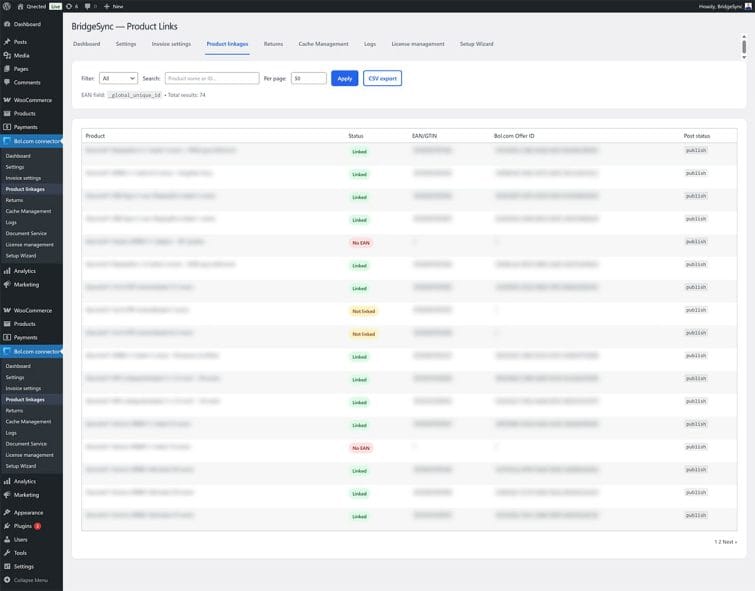
The page displays your configured EAN source field at the top (e.g. EAN field: _global_unique_id) along with the total results count. Each product shows:
| Column | Description |
|---|---|
| Product | WooCommerce product name |
| Status | Link status badge (see below) |
| EAN/GTIN | The product's barcode number |
| Bol.com Offer ID | Bol.com's unique offer identifier (assigned after linking) |
| Post status | WordPress product status (publish, draft, etc.) |
Understanding status badges
Each product displays one of three status badges:
Product is successfully connected to Bol.com. Stock and prices will sync automatically.
Product is missing an EAN code in the configured field. Add the EAN to enable linking.
Product has an EAN but isn't matched to a Bol.com offer. This usually means you haven't created the offer on Bol.com yet, or the EAN doesn't match.
Filter and search products
Use the filter options to quickly find products that need attention:
- Filter dropdown — Show all products, or filter by status (linked, not linked, no EAN)
- Search — Find products by name or ID
- Per page — Adjust how many products display per page
- CSV export — Download the complete list for analysis in Excel or Google Sheets
Tip: Check this page regularly after adding new products. Filter by "No EAN" or "Not linked" to quickly identify products that won't sync until you fix them.